
The Lab / ComfyUI
CodaComfy Nodes
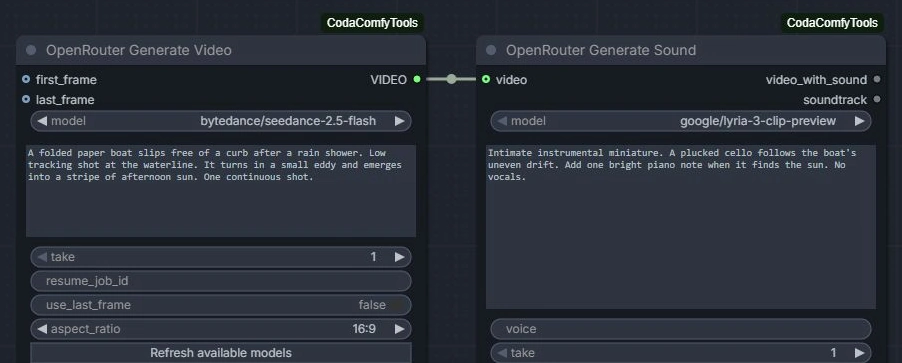
A paper boat turns in a puddle. A single piano note lands as it catches the light. Build the shot first, then score it to picture. This free ComfyUI extension also lets you cast a speaking scene and cut several shots into a book trailer.
Get the nodes on Comfy Registry
One prompt, three observatory posters
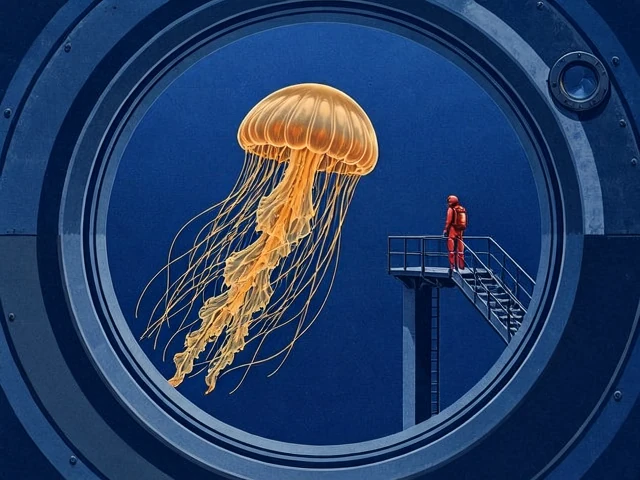
The brief for this local ComfyUI study was an amber jellyfish outside an underwater observatory, a red-suited diver for scale, and a deep-blue, copper and ivory screenprint palette. A single run produced these three 640 × 480 compositions.


Set the style with LoRA Stack
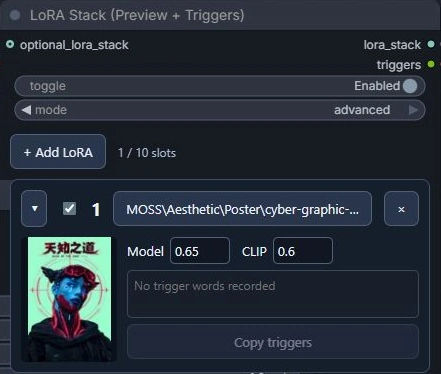
LoRA Stack (Preview + Triggers) lets you browse local LoRAs by their preview images, switch individual slots on or off, and copy trigger words when the file records them. Simple mode uses one strength. Advanced mode gives the model and text encoder separate controls.
For this run, the cyber-graphic poster LoRA used 0.65 model and 0.60 CLIP. The stack went into CR Apply LoRA Stack before sampling. To see what a style contributes, keep the seed fixed, disable that slot, and run the same prompt again.
Pick the frame with Latent Image Chooser
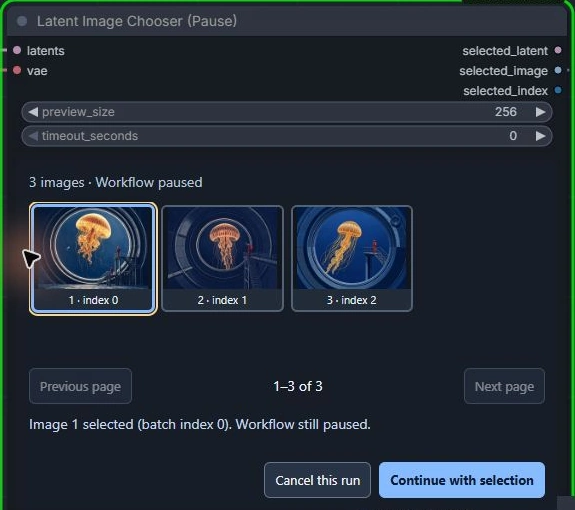
Latent Image Chooser (Pause) takes the sampler’s batch and its matching VAE, then pauses for a decision. Click a thumbnail to inspect it at full resolution. Close the preview and click Continue with selection to send that choice downstream.
The first image won out for the bright rim behind the jellyfish. Its batch index is 0. Route selected_image to a preview or save node, or route selected_latent to another sampling pass to refine that composition.
Download the observatory workflow
Unzip the JSON and open it in ComfyUI. This example uses CodaComfy Nodes, Comfyroll’s stack loader, and a local MOSS model, encoder, VAE and LoRAs. Select your installed files in the loaders. The ZIP includes the graph and setup notes. Both showcased nodes work locally without an OpenRouter key.
Generate the picture, then add sound
OpenRouter Generate Video turns a prompt into a silent shot. Choose a model and one of its supported durations. Connect a first frame to anchor the composition, and add a closing frame when the model supports it. The node can refresh the model list and display your OpenRouter credit balance.
Connect the shot to OpenRouter Generate Sound and describe what you want to hear. In the paper boat example, a plucked cello follows the boat and a piano marks the turn into sunlight. The node returns both the soundtrack and a scored video.
Cast the conversation
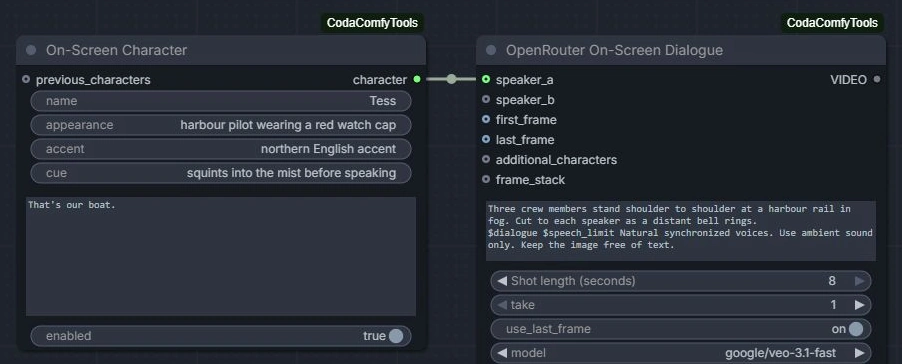
An On-Screen Character card holds a name, appearance, accent, performance cue and line. Here, Tess is a harbour pilot in a red watch cap. She squints into the mist before saying, “That’s our boat.” Chain cards in speaking order, switch one off to skip a voice, or leave the cast empty for a silent scene.
OpenRouter On-Screen Dialogue combines the cast with your camera direction and optional image guides. Keep $dialogue in the scene prompt so the lines follow the connected cards. Choose a model that supports native audio for on-camera speech.
Build a longer cut
Guide the camera
Chain Frame Stack cards in story order. One image sets the opening. With multiple images, consecutive pairs can guide separate shots. Each generated shot can incur a charge.
Keep speech audible
Mix Dialogue and Soundtrack sets the score level under the recorded voices. For a separate narrator or dubbed exchange, use OpenRouter Character Dialogue to generate a voice track from a cast and script.
Watch the workflow examples
Roller Rink Teaser
A skater tightens the last lace, pushes off and sweeps across an empty neon rink. For this cut, the workflow selected eight seconds of the original synth-disco track After Hours, starting at 3.75 seconds. To try a different cut, upload your own song in the workflow.
Last Call at the Station
A dispatcher asks, “Last train?” The conductor answers, “Left an hour ago.” The cleaner stops sweeping. “Then who rang?” Open the three character cards to change the lines, accents and cues. The scene prompt keeps the speaking face in view as the shot moves around the station office.
Download both editable workflows
Each JSON opens as a separate workflow. Choose a supported model and duration before running. The rink example needs your own song. Both use your OpenRouter account for generation.
The Fairest book trailer
White flowers break through the dead soil of Thornfield. When the elder holds out a cup, the woman who brought them back asks, “And when I’m empty?”
The 22-second cut joins three scenes and a narrated title card. A single score runs beneath the voices.
Download the full book trailer workflow (ZIP)Unzip the files, copy the included guide image to your ComfyUI input folder, then open the JSON. Edit the cast, lines, artwork, title and score to make your own trailer.
Open a workflow in ComfyUI
In Nodes Manager → All Extensions, search for CodaComfy Nodes by codalanguez. Install the pack and restart ComfyUI. For the OpenRouter workflows, set OPENROUTER_API_KEY in the server environment before restarting. The pack is MIT licensed. OpenRouter generation uses your credits.
Seven templates cover silent video, generated scores, an uploaded song matched to a concept, three speaking characters, two kinds of multiscene dialogue, and a full book trailer. Start with 01 – Simple Text to Video. For the music and image-guided examples, upload your own media in the marked nodes.